Everything You Need to Know About VR Chat
VR Chat can be quite powerful for anyone who is seeking some great intimate fun….
Key Takeaways
- Top 3 factors for realism: 1) Low latency and stable head-tracking; 2) Sustained high bitrate and storage throughput; 3) A comfortable, high-refresh-rate headset with correct IPD.
- The Latency-Presence Gap is the point at which frame timing, head-tracking delay, and compression artifacts fall low enough to sustain perceived depth, cross that threshold and the experience holds together.
- Local storage via USB-C SSD or wired NAS generally outperforms Wi-Fi for high-bitrate files, reducing stutter and playback drops.
- Player software should expose decode options and frame rate controls to match the headset's native refresh rate.
- Disable cloud sync, unnecessary app permissions, and isolate VR traffic to a dedicated network SSID when handling private content.
About Virtual Reality Porn, the hard truth about realism
Most people buy a better headset when what they actually needed was a better delivery chain. VR adult content is immersive video delivered in 360°, VR180, or stereoscopic 3D formats, and its realism depends far less on raw pixel count than on stable playback, low latency, and adequate bitrate.
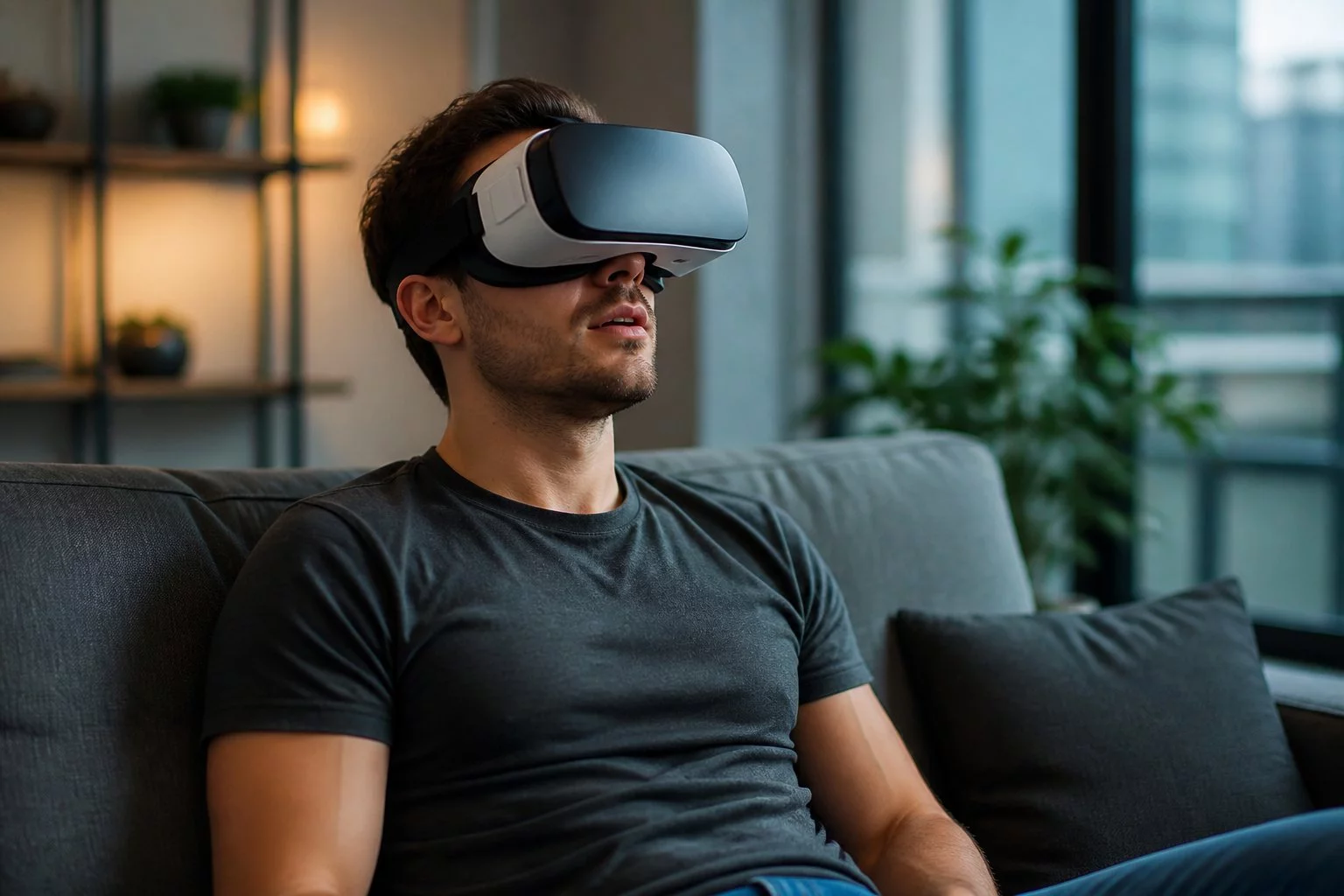
Get those three right and the experience convinces. Get them wrong and no resolution bump will fix it.
If your VR porn feels off, wobbly scale, nausea, or visible compression blocking, the delivery chain is almost always the culprit. Playback software, network throughput, and headset hardware all contribute before the footage itself becomes the issue.
Lock frame timing and minimize latency first. Only then chase higher resolution.
Why VR hardware creates presence (headset, refresh rate, IPD)
Presence is fundamentally a hardware problem. Your brain accepts a simulation only when tracking, refresh rate, and visual fidelity all agree with each other. When they don't, the experience falls flat, and no amount of resolution fixes it.
The key concept is the Latency-Presence Gap: the threshold at which frame timing, head-tracking delay, and compression artifacts drop low enough that your perception stops noticing the seams. Below that threshold, realism holds. Above it, even expensive hardware reads as flat. Depth collapse or blockiness during head turns is a reliable sign you're over the gap.
The fix is near-zero sustained dropped frames and the lowest possible head-tracking-to-frame latency.
In testing with motion-rich HEVC samples and hardware decode enabled, a 5K encode at roughly 60–80 Mbps preserved depth and parallax well. A nominal 8K file encoded at around 18–20 Mbps lost motion detail and smeared parallax noticeably on fast head turns. Pixel count matters far less than hitting the latency-presence threshold.
hardware decodeand prefer locally stored high-bitrate files to avoid transcoding-induced latency. Consistent playback with near-zero drops and no blockiness during head turns means you're at or near the threshold.
Step 1, Hardware selection: Standalone vs. PCVR
Standalones simplify setup and cut cables, but sustained 5K–8K playback often benefits from PC-side decoding or a locally attached USB-C SSD. Drives like the Samsung T7 Shield or SanDisk Extreme Pro handle the read speeds these files demand. The lighter setup isn't always the better-performing one.
A headset you can actually wear for a full session matters more than one that looks impressive on a spec sheet. Strap comfort, cooling, adjustable IPD, and replaceable face pads all determine how long you stay immersed before something starts to feel wrong. The Meta Quest 3 and Sony PlayStation VR2 both offer adjustable IPD and solid per-eye resolution; the Valve Index remains the benchmark for PCVR comfort and refresh-rate flexibility. Before buying, confirm the native refresh rate, per-eye resolution, and whether the USB-C port supports DisplayPort Alt Mode for wired PCVR.
Users routinely underestimate physical comfort. Chasing specs while ignoring ergonomics means pulling the headset off after 15–20 minutes because it's running hot or digging into the face, and that kills immersion more reliably than a mild bitrate drop ever could.
Step 2, Network & storage for high-bitrate VR playback
Local storage removes the two biggest causes of dropout in one move. A USB-C SSD or a wired NAS reduces jitter far more reliably than congested Wi-Fi, and it's usually the first fix worth trying before adjusting anything else.
As a rough guide (scene-dependent): aim for approximately 60–120 Mbps sustained for 5K HEVC and approximately 120–200 Mbps for 8K HEVC, with higher-motion content pushing toward the upper end of those ranges. If streaming is unavoidable, use a Wi‑Fi 6 router, the TP-Link Archer AXE75 and ASUS RT-AX86U are both well-regarded for sustained throughput, or run wired Ethernet to the source device. Set the router to the 5 GHz band for the headset, enable QoS to prioritize streaming traffic, and disable power-saving on both router and headset to prevent intermittent drops.
For direct SSD connection, use a USB-C 3.1 or 3.2 cable rated for full-speed data transfer. For NAS streaming, prefer a wired gigabit link from NAS to router and a dedicated 5 GHz SSID for the headset. In practice, copying files to local storage often removes stutter immediately, which tells you that careful network tuning was solving the wrong problem all along.
Step 3, Player software selection
Choose a player that exposes decode and frame rate controls. DeoVR and SkyBox VR are both solid choices, actively developed, with clear overlay diagnostics built in. Prioritize frame rate stability over maximum resolution. The visual system is more sensitive to timing inconsistency than to pixel count, and a stable frame cadence prevents judder far more effectively than chasing extra resolution.
Enable decode, which offloads video decompression to the GPU rather than the CPU, keeping frame timing consistent, or VP9 decode, and confirm it's active via the player overlay. If the overlay shows software decode, switch players or update firmware and drivers before touching anything else.
Force output to the headset's native refresh rate or a clean multiple. Only increase the decoder buffer if you're seeing network hiccups. Pure frame drops point to a decode or storage problem, and a larger buffer won't fix either.
Step 4, Privacy lockdown
Optimizing the playback chain is only half the picture. What you store and sync can expose private content just as easily as a misconfigured network.
Use incognito-capable playback where available, disable cloud sync for private files, and turn off headset account sync before importing content. Built-in cloud features are convenient, and they leak metadata unless explicitly disabled.
Run a local DLNA server or SMB share isolated from your main network. Disable guest access and require credentials on the NAS. The goal is streaming files without leaving a local cache on the device. Revoke storage access for any app that doesn't need it, disable diagnostic uploads, and turn off third-party analytics before playing private content. Clear playback history and local caches after each session.
Modern headset platforms sync data aggressively in the background. These steps aren't optional hygiene, they're essential.
Troubleshooting: diagnostic phrases that keep conversations focused
Precise language speeds up troubleshooting considerably. Match your symptom to one of the descriptions below before asking for help, vague descriptions produce vague answers.
Scale distortion: "Scale looks wrong, objects appear too large or too small relative to real-world proportions." The immediate fix is the IPD (Interpupillary Distance) slider, which adjusts lens spacing to match your eyes. Work through the range in small increments until depth and scale feel natural. This is a hardware adjustment, not a content issue.
Frame drop / network dropout: "I'm running the sample at headset-native Hz, sourced over [Wi‑Fi / NAS], and seeing intermittent dropout every [X] seconds." That framing isolates whether the fault is network saturation, QoS misconfiguration, or a buffer size mismatch in the player.
Codec fallback: "The player's codec display shows software decode is active instead of hardware HEVC decode." When decode falls back to software, the CPU carries that load, adding latency and dropped frames that look identical to network problems. Confirm via the player overlay that hardware decode is active, then verify firmware support for your file's profile and level.
Judder / frame rate mismatch: "Playback stutters rhythmically at approximately [X]-second intervals even from local storage." Rhythmic judder on local files almost always means a frame rate mismatch, the player output rate doesn't match the headset's native refresh. Force the player to the exact native rate (60, 72, 90, or 120 Hz) rather than letting it auto-detect. If the player offers motion smoothing or reprojection, test with it off; it can hide timing errors while introducing its own artifacts.
Compression blockiness: "I see blocky artifacts during fast lateral head movement, even on a high-resolution file." This typically means the source bitrate is too low for the scene's motion complexity, not a player or network fault. Switch to a higher-bitrate encode of the same content and retest.
Most troubleshooting stalls because the symptom description is too vague to diagnose remotely. In one test case, two full sessions were spent suspecting a faulty router before the player's codec overlay revealed a silent fallback to software decode. The overlay had been visible the entire time, it just hadn't been checked.
Usage paths
Starter path
- Install a dedicated VR media player such as DeoVR or SkyBox VR.
- Confirm the headset's native refresh rate in system settings and set the player to match.
- Adjust the IPD slider until scale and convergence look natural.
- Verify hardware HEVC or VP9 decode is active in the player's codec display.
- Run a short motion check with a local high-bitrate sample before committing to a full session; stop if discomfort appears.
Optimization path
- Move high-bitrate files to a locally attached USB-C SSD, drives like the Samsung T7 Shield or SanDisk Extreme Pro deliver sustained read speeds well above what even 200 Mbps VR files demand; fall back to a wired NAS with QoS only if direct storage isn't an option.
- Configure a dedicated Wi-Fi 6 SSID for the headset on a capable router such as the ASUS RT-AX88U or TP-Link Archer AXE75, then run a throughput test between the source device and router during playback and compare sustained throughput against the file's bitrate requirement.
- Disable cloud sync, revoke unnecessary app permissions, and isolate VR traffic to a dedicated network SSID before playing private content.
- If stable 5K–8K playback remains elusive after these steps, post in headset or player community forums with your device specs, file details, and player logs, a second set of eyes usually catches what solo troubleshooting misses.
In practice, most users skip straight to the optimization path before completing the starter checks. That reliably makes things worse. And the dedicated SSID setup often takes longer than expected on mesh networks where band-steering keeps reassigning the headset, worth the effort, but budget the time.
Common mistakes that break presence
Phone-based viewers with Fresnel lens holders are built for short demos, not sustained high-bitrate playback. Optical design and ergonomics matter as much as pixel count, avoid them for anything beyond a quick test.
Prioritizing resolution over frame rate is a reliable way to cause judder and nausea. Set the player to match the headset's native refresh rate rather than forcing upscaled resolution.
Keep lenses clean with microfiber and alcohol-free wipes, and replace foam cushions on the manufacturer's schedule. Skin oils degrade optics quickly, blurring fine detail no matter how good the source file is. Users often blame the content when the real culprit is dirty glass.
Compatibility and playback checks
Confirm your headset supports HEVC/H.265 or VP9 hardware decoding, and verify the container format you plan to use. MKV and MP4 are broadly supported, but it's worth confirming for your specific device. Hardware decode offloads processing from the CPU to a dedicated chip, without it, the device struggles at higher bitrates and frame rates drop. Check it's active before blaming the player for any stuttering.
For physical connections, make sure your USB-C cable is rated USB 3.1 or higher if you're running an external SSD, and confirm DisplayPort Alt Mode support for wired PCVR setups. A substandard cable causes more problems than most people expect, swap in a known-good cable before troubleshooting anything else.
For network delivery, run a throughput test between the source device and router during actual playback, not at idle. Sustained throughput needs to meet or exceed the file's bitrate requirement. If it doesn't, switch to 5 GHz with QoS prioritization, or move the files to local storage entirely. A Wi-Fi 6 router such as those in the TP-Link Archer AX series or ASUS RT-AX range handles the bandwidth demands of 100–200 Mbps VR files far more reliably than older 802.11ac hardware under load. Hardware that looks capable on a spec sheet can behave very differently during real playback, and that gap is where most setup frustration lives.
Realistic outcomes and failure modes
Getting the latency-presence threshold right, the point where motion-to-display lag drops low enough that your brain stops registering the disconnect, produces fewer perceptual inconsistencies, lower nausea incidence, and noticeably better depth perception. It's a measurable technical shift, but reaching it requires aligning multiple layers of the chain at once. One setting change rarely moves the needle on its own.
The failure modes are specific and fixable. Saturated Wi-Fi causes frame drops. Mismatched frame rate settings cause judder. Over-compression washes out microdetail. Degraded optics from skin oils blur fine features. Each maps to a concrete fix: change storage method, match frame rate, use higher-bitrate files, clean the lens and replace the foam.
Many users focus on resolution and bitrate while ignoring lens hygiene entirely. A smeared lens running a 200 Mbps file still looks worse than a clean lens at half that bitrate. Consistent lens care, replaceable foams, and managed battery cycles all determine long-term usable lifespan. Once the chain is properly aligned, the improvement in felt realism and reduced nausea is immediate and repeatable.
Frequently Asked Questions
What is the most important factor for realistic VR adult content?
Stable frames and low end-to-end latency matter more than raw pixel count. Mismatched frame timing and compression artifacts break immersion faster than lower resolution ever will. The three factors to prioritize are:
- Latency and head-tracking stability
- Sustained bitrate and storage throughput
- Headset comfort, refresh rate, and correct IPD
Sort out the delivery chain first, bitrate, storage throughput, head-tracking latency, before worrying about resolution.
What is the Latency-Presence Gap?
The Latency-Presence Gap is the point where frame timing delays, head-tracking lag, and compression artifacts drop low enough that your brain stops registering them. Stay below it and the experience feels convincing. Push past it and things fall apart almost immediately.
It isn't a fixed universal spec, think of it as a practical performance target rather than a hard number to chase.
How can I reduce stuttering in VR playback?
Moving files to a directly attached USB-C SSD is the most reliable fix. A fast portable drive connected directly to your headset or PC eliminates the throughput bottlenecks that cause stutter. Samsung T7 and SanDisk Extreme Pro drives are consistently well-reviewed for the sustained read speeds that high-bitrate VR files demand.
If you prefer streaming, use wired Ethernet for a NAS, or set up a dedicated Wi-Fi 6 SSID on the 5 GHz band with QoS enabled. ASUS RT-AX and TP-Link Archer AX routers both offer solid QoS controls. Run a throughput test during active playback, not just at idle, to confirm sustained delivery actually meets your file's bitrate requirement.
How do I ensure privacy when viewing VR adult content?
Use a player with incognito or private-mode support, disable cloud sync for any local files, and run a DLNA or SMB share isolated from your main network. Revoke storage permissions for apps that don't need them, and turn off diagnostic or usage uploads in your headset settings.
What causes scale distortion in VR?
When people or objects look unnaturally large or small, the culprit is almost always a wrong IPD setting. IPD, interpupillary distance, is the physical gap between your eyes. When the headset's lenses don't match it, depth perception breaks down and scale looks off.
Adjusting the hardware IPD slider on headsets like the Meta Quest 3 or Sony PlayStation VR2 usually fixes it immediately.
Ready to experience live VR cams?
Enter Live VRStrip.Cam Free