About Virtual Reality Porn
Virtual reality is a term that has been introduced by many new technology. VR porn.
Key Takeaways
- Getting started with VR adult content comes down to three things: presence (head-tracking and correct projection), privacy (local playback and payment hygiene), and latency (stable decode under roughly 50 ms). Confirm all three in a short demo before committing to longer sessions.
- 180° stereoscopic video is preferred over 360° for immersion, it dedicates all available bitrate to the forward field of view, producing more convincing depth.
- Sensory desync is a physiological mismatch between visual motion and inner-ear signals. Research suggests keeping end-to-end latency below roughly 50 ms can meaningfully reduce discomfort for most users.
- Hardware choices range from standalone headsets to PC-tethered systems; check for hardware HEVC/H.265 (Main10) decode support before buying to ensure consistent 8K playback.
- For privacy, use a guest network or dedicated SSID, an incognito headset browser profile, and privacy-focused payment options, then clear download history and disable cloud sync.
- Before every session, clean lenses, verify your connection, and confirm head-tracking is stable.
Virtual Reality Porn: Things You Should Know Before You Start
Presence, Why VR Adult Content Isn't a 3D Movie
The most common reason first-timers quit VR adult content has nothing to do with resolution, it's a misconfigured projection mode, or a headset that was never properly set up for playback in the first place. Better hardware helps, but it won't save a broken configuration.
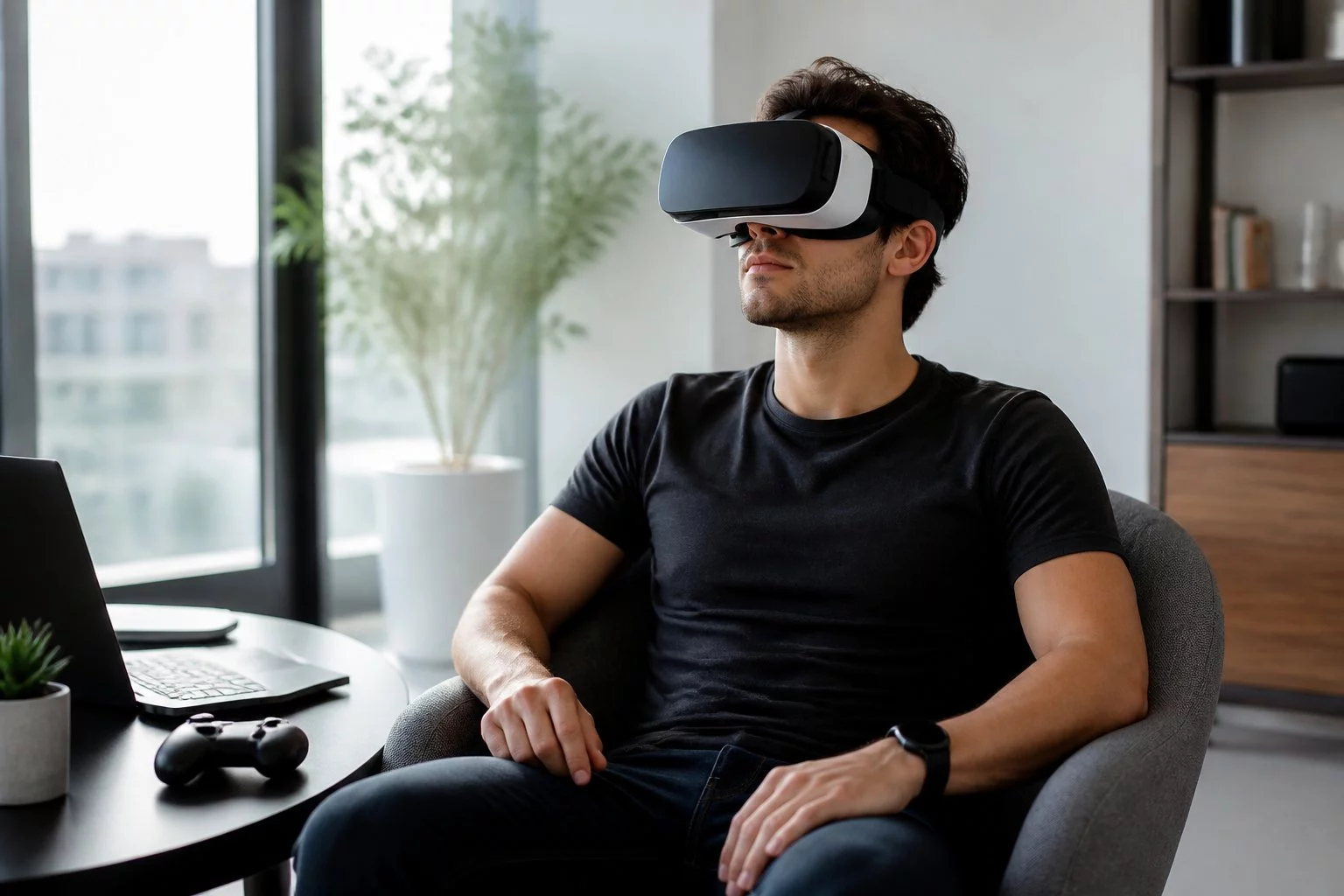
Getting VR adult content right from the start comes down to three things:
- Presencehead-tracking and projection mode (side-by-side or top-bottom) must be correctly configured before your first session.
- Privacyuse local playback where possible, and apply basic payment hygiene to avoid account-level traces.
- Latencykeep end-to-end decode latency below roughly 50 ms, or motion sickness becomes a real problem, fast.
VR is spatial computing, not a widescreen upgrade. The system tracks exactly where your head is pointing and redraws the image in real time with every movement. That's why latency matters far more than pixel count, and why confirming these three fundamentals in a short demo before committing to a full session is always worth the two minutes it takes.
Why 180° Stereoscopic Video Beats 360° for Real Immersion
180° stereoscopic video, typically encoded as HEVC H.265 180° SBS, is the practical standard for convincing depth. All available bitrate goes to the forward field of view, exactly where your eyes are focused. In a well-encoded 180° file, fine textures stay sharp as you slowly pan your head.
In most 360° files, that sharpness blurs out. 360° sounds more immersive on paper; in practice, it usually isn't.
Sensory Desync: When what you see doesn't match your inner-ear signals, nausea follows. Common causes are dropped frames, head-tracking lag, or incorrect playback geometry, for example, a mismatched projection mode (SBS/top-bottom) that kills perceived depth entirely. Cybersickness research published in Frontiers in Virtual Reality confirms that even modest latency increases measurably raise discomfort for many users.
Aim for stable decode and end-to-end latency below roughly 50 ms. If slow, steady head turns produce micro-judder, you're already over budget. Frame-rate drops and decoding glitches erode realism far faster than a slight resolution drop ever will. When you can't hit that latency target, local playback is almost always more stable, and better for privacy at lower connection speeds.
Protect Your Privacy & Avoid Motion Sickness, From Unboxing to Viewing Safely
Step 1, Hardware selection. The first choice is standalone versus PC-tethered. Standalone headsets like the Meta Quest 2, Quest 3, and Pico devices are easier to set up and get running quickly. PC-tethered systems like the Valve Index offer more raw decoding headroom. Before you commit, check for HEVC H.265 (Main10) hardware decode support, look under "video" or "codec support" on the manufacturer's official specs page, since most list this clearly.
Run a smooth 180° 8K sample on your target device before buying. If consistent 8K playback matters, a higher-end standalone or a PC tether is worth the extra cost. For adult VR content specifically, decode performance and display resolution are the two specs that actually move the needle.
Closed-back headphones or solid acoustic isolation reinforce spatial audio. Most people skip this entirely, good audio does more for immersion than most hardware upgrades.
Step 2, Privacy setup. Connect the headset to a guest network or a dedicated SSID, use an incognito browser profile inside the headset where possible, and stick to platforms that accept privacy-friendly payment methods. Disable cloud and app sync, and clear your download and browser history inside the headset regularly. A passcode lock adds another layer.
Prepaid cards and privacy-focused payment processors reduce the paper trail, but none of them erase local device traces. Rename downloaded files and disable automatic cloud backups, filenames and sync logs are two of the most common leakage paths people overlook. One thing worth being direct about: incognito mode and a guest SSID reduce local traces, but neither hides traffic from your ISP. For real privacy, local playback beats streaming every time.
Step 3, Platform selection. Look for platforms that offer high-bitrate 180° stereoscopic streams and let you download locally alongside streaming. Make sure the player handles correct projection modes, HEVC H.265 180° SBS or top-bottom, and reads file metadata accurately. A wrong projection mode causes eye strain and kills depth immediately.
Prioritize bitrate and stable 60 fps over an "8K" label; that number means less than studios suggest. A subscription that supports both streaming and local download gives you a reliable fallback when your network isn't cooperating.
Step 4, Physical space calibration. Set your boundary, clear hazards, and make sure lighting works for inside-out or external tracking. Very dim light, strong backlighting, and reflective surfaces can all break tracking mid-session. Seated viewing reduces collision risk and is the right default until you've validated the space for standing use. Skipping space calibration once typically means spending half the session recalibrating after tracking glitches, do it properly the first time and you won't need to think about it again.
Finding Quality Content: Search Phrases and a Quick Playback Check
The most reliable search phrases for high-quality files are 8K HEVC 180 SBS5K 180 stereoscopic HEVC180 side-by-side 4K60and your platform name followed by high-bitrate 180° VR adult video demo. These surface formats that preserve depth and detail, not the thin, compressed files that look flat the moment you put the headset on.
Before committing to a full session, run a quick playback check:
- Open the headset browser and navigate to a known 180° demo.
- In your player, set the projection mode (SBS/top-bottom) to match the file, most modern files use 180° SBS.
- Enable hardware-accelerated playback in browser settings where available.
- Play at the highest quality setting and watch for dropped frames or stutter over roughly 30 seconds. If it judders, switch to local playback or drop the bitrate profile.
On desktop, confirm GPU decode is active in Task Manager or Activity Monitor before transferring files to the headset. That one step catches pixelation and decode issues early, before you're already inside wondering why everything looks wrong.
Starter Path vs Power-User Setup
Starter path: Buy a Meta Quest 2 or 3, use the native browser or storefront, test free 180° demos, and stay seated until IPD and frame stability feel right. This gets you a usable experience quickly with minimal friction. Just make sure the player is set to 180° SBS for each demo, that single setting trips up more first-timers than any hardware problem does.
Power-user path: Host your own files over DLNA or SMB and stream with a dedicated player like. Test originals before transcoding anything to HEVC H.265 (Main10). In a dedicated player, explicitly set the correct projection mode (SBS or top-bottom) and frame rate. Local playback keeps your viewing history off third-party servers and removes most streaming variables. You trade setup time for noticeably more stable results.
Many first-time buyers give up convinced their headset is defective, when the real problem is a wrong projection mode on every file they tried.
One honest note: flawless 8K across every title is uncommon. Capture quality, studio encoding standards, and per-title bitrate all vary considerably. Be ready to adjust your playback method or switch devices when a specific scene demands it.
Common Mistakes That Wreck Presence
Skipping IPD calibration. A poor fit reduces both clarity and comfort immediately. Two minutes of adjustment at the start of each session prevents more discomfort than any resolution upgrade.
Choosing 360° because it sounds more immersive. More field of view isn't the same as better presence. 360° sacrifices stereoscopic depth and bitrate per pixel, so the immersion you gain on paper tends to evaporate on screen. Compound that with a wrong projection mode, a 180° file loaded without the correct SBS setting, and you get flattened depth or double images instead. Check projection mode before adjusting bitrate; it's the most common configuration mistake, and also the easiest to fix.
Neglecting lens hygiene. Clean lenses before every session with a microfiber cloth; a small alcohol wipe handles stubborn residue. Smudges magnify compression artifacts and quietly degrade perceived depth in ways that are easy to blame on the content.
Underestimating network requirements. Streaming 8K over a congested 2.4 GHz channel invites rebuffering and sensory desync, a leading cause of motion sickness in VR adult video. Use 5 GHz or Wi-Fi 6/6E on a dedicated SSID, or wire in where you can, before blaming the headset or the studio. Network stability matters as much as raw resolution.
Three Checks Before Every Session
- Clean your lenses. A quick pass with a microfiber cloth directly improves perceived sharpness. Many users blame compression for blur that a clean lens would fix in under a minute.
- Verify your connection. Confirm a strong Wi-Fi 6 signal on a dedicated SSID, or use a wired connection. Run a short 180° demo clip to check throughput, frame stability, and head-tracking as you pan.
- Run a sensory desync check. Play the demo while slowly turning your head. Immediate disorientation means something is off, stop and recheck IPD, frame rate, and playback method rather than pushing through. If faces or edges double or stretch, your projection mode is wrong; fix that before continuing.
If those three checks pass, the 60-second test below confirms everything is holding together under real conditions.
Your First 60-Second Test: How to Confirm Your Setup Is Working
A good session delivers stable decode, smooth tracking, convincing depth, and no nausea, all four, within the first minute of a demo clip. Clear that window without disorientation and most full scenes on the same setup will behave consistently.
One thing that trips people up regularly: a file that plays perfectly on desktop can still stutter inside a headset if hardware decode isn't engaging properly. Before transferring files, enable hardware-accelerated playback on desktop and check GPU decode usage in Task Manager or Activity Monitor to confirm it's actually active, not just listed as available.
Per-title quality is genuinely inconsistent, flawless 8K across every release is rare because capture quality and encoding standards vary significantly between studios. That's a production problem, not a headset problem. If multiple demos stutter on the same device, switching to local playback is the first thing to fix. If that doesn't resolve it, a PC tether or a newer headset is the likely answer. For those who want maximum reliability, a headset with strong hardware decode support combined with on-device file storage is the most predictable long-term setup.
Frequently Asked Questions
Why is 180° stereoscopic video better than 360° for VR immersion?
180° stereoscopic video puts all available bitrate into the forward field of view, so the image you're actually watching is sharper and has more convincing depth. With 360°, that same data gets spread across every direction, meaning the area in front of you ends up softer and flatter. Bitrate per degree is what drives crispness, and 180° dedicates all of it to where your eyes are pointed.
What causes VR nausea and how do I avoid it?
VR nausea comes from a sensory mismatch: what you see doesn't line up with what your inner ear is registering, and your brain treats that as a threat. Dropped frames, head-tracking lag, and wrong playback geometry are the usual culprits. Keeping end-to-end latency under roughly 50 ms is a reasonable baseline for avoiding motion sickness. If slow head turns produce micro-judder, try lowering the bitrate or switching to local playback.
What are the key steps for setting up VR safely?
Start with the right hardware and dial in IPD before your first session. Set up a guest network or a dedicated SSID, use an incognito browser profile, and choose a privacy-conscious payment method. Incognito mode and guest networks only reduce local traces, neither hides traffic from your ISP, so local playback is the stronger option for genuine privacy. Look for platforms offering high-bitrate HEVC H.265 180° SBS streams, clear your play area, and start seated until you're comfortable with the space.
What search terms help me find high-quality VR content?
Search for terms like "8K HEVC 180 SBS, 5K 180 stereoscopic HEVC," or "180 side-by-side 4K60." These formats prioritize depth and bitrate over full-sphere coverage. Avoid monoscopic 360° files mislabeled as "VR", they look flat no matter how high the listed resolution is.
What common mistakes hurt the VR experience most?
Skipping IPD calibration, choosing 360° when 180° is available, neglecting lens hygiene, and underestimating network requirements top the list. Setting the wrong projection mode, forgetting to enable 180°/SBS, either flattens depth entirely or produces double images and eye strain. Any single one of these problems is enough to ruin a session; stack a few together and it becomes unwatchable.
Ready to experience live VR cams?
Enter Live VRStrip.Cam Free